Fix Thesis PDF Errors: Merge, Compress, OCR & Numbering
Eliminate thesis portal upload rejections in minutes. Learn how to merge chapters cleanly, shrink bloated PDFs without blurring figures, run OCR on scanned appendices, and fix Roman-to-Arabic page numbering.

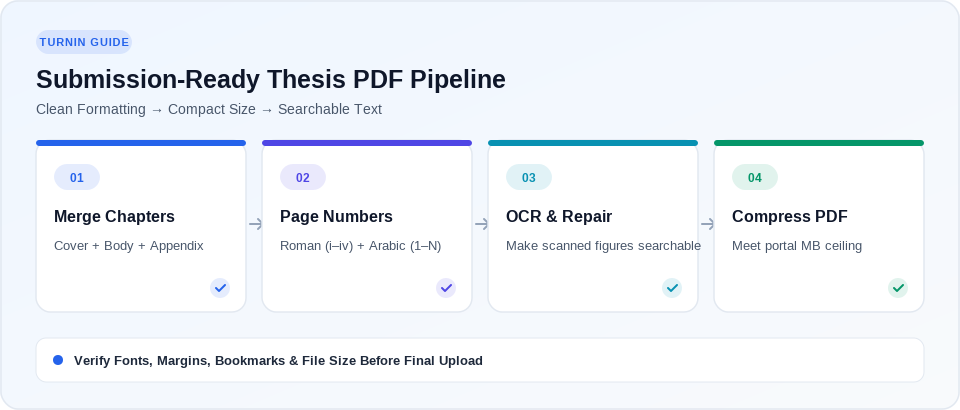
Key Takeaways: Most university portal upload rejections stem from four fixable PDF defects—oversized image exports, unsearchable scanned appendices, rogue blank pages from section breaks, and mismatched Roman-to-Arabic page numbers. Follow a strict four-stage order—merge, OCR, paginate, then compress—before submitting to your university's official repository.
1. Why University Portals Reject Clean-Looking Thesis PDFs
It is 11:42 p.m. the night before your dissertation deadline. Your Word or LaTeX manuscript looks spotless on screen, your advisor has signed off, and you hit Upload—only for the graduate school portal to throw Error: File exceeds 25 MB limit or Non-searchable PDF detected in Appendix B.
These last-minute errors happen because visual polish is not the same as structural compliance. Institutional repositories (such as university ETD portals, ProQuest, and campus submission platforms) run automated pre-flight checks on your file. They verify maximum megabyte ceilings, embedded fonts, selectable text layers for indexing and accessibility, and unbroken pagination from cover to appendix.
Consider a common before-and-after scenario:
- Before (Rejected): Exporting a 140-page thesis directly from Word with uncompressed 600 DPI microscopy figures (68 MB total), two flat-scanned IRB approval letters (zero selectable text), and a blank page before Chapter 3 caused by an odd-page section break.
- After (Accepted): A 14.2 MB single PDF with crisp 300 DPI charts, 100% searchable OCR text across every scanned form, zero unintended blank pages, and clean Roman numerals (
ii–viii) transitioning cleanly into Arabic1on Chapter 1.
2. Common Thesis PDF Errors and Practical Thresholds
Before touching any software, match the symptom on your portal error screen to its root cause and target threshold. Trying to fix a 65 MB file by deleting appendix pages or screenshotting tables only creates new defects.
| Upload Error or Defect | Underlying Root Cause | Practical Target Threshold | Recommended Fix |
|---|---|---|---|
| File exceeds portal size limit | Uncompressed 600+ DPI photos or raw PNG embeds | Under 20–30 MB (150–300 DPI images) | Downsample images as the final step |
| Unsearchable scanned appendix | Ethics letters or surveys saved as flat images | 100% selectable text across all pages | Run 300 DPI OCR before compressing |
| Broken page numbering | Title page counted as 1 or Roman numerals leak | Front-matter ii–x; Chapter 1 starts at 1 | Reset folio style at the PDF level |
| Phantom blank pages | Word "Odd Page" breaks or trailing empty lines | Zero unintended blank pages in thumbnail view | Delete stray sheets right after merging |
| Missing glyphs or shifted math | Unembedded custom fonts or broken LaTeX subsets | 100% embedded fonts (PDF/A compatible) | Export clean PDFs per section first |
Notice one critical rule hidden in that table: sequence matters. If you compress a scanned ethics form first and run OCR second, aggressive image downsampling blurs small footnote characters and causes OCR misreads. Always run OCR on sharp scans *first*, and save compression for last.
3. Solving the Three Hardest Formatting Traps
Fixing Roman Front-Matter vs. Arabic Body Numbering
Nearly every graduate school style guide follows the same pagination split: the title page carries no visible number (though it counts silently as Roman i), preliminary pages (abstract, acknowledgments, table of contents, list of figures) use lowercase Roman numerals (ii, iii, iv), and Chapter 1 Page 1 resets to Arabic numeral `1`.
In Word, maintaining that split across seven section breaks—especially when rotating one appendix table to landscape—frequently breaks header links. A safer approach is exporting your preliminary section and body chapters as clean separate PDFs, then applying explicit page-number ranges once the document is assembled.
Making Scanned Appendices Searchable Without Ruining Signatures
Signed consent forms, institutional review board (IRB) approvals, archival letters, and field questionnaires usually enter your thesis as flat JPEG or PDF scans. Without Optical Character Recognition (OCR), those pages act like photographs: examiners cannot search keywords with Ctrl+F, screen readers cannot parse them, and repository validators flag them as image-only pages. Modern OCR embeds an invisible, selectable text layer *underneath* the original scan, preserving signatures, stamps, and handwriting visually while making every printed word searchable.
Compressing Heavy Figures Without Blurry Charts
Students often shrink a 70 MB thesis using "minimum size" presets that crush line charts into unreadable 72 DPI smudges. Aim for 300 DPI on photographic plates or microscopy images required for archival print, and 150–200 DPI for standard screen-review charts. Crucially, export graphs and diagrams as vector PDFs from R, Python, or Illustrator rather than screenshots—vector lines stay razor-sharp at any zoom level while taking up a fraction of the file size.
4. The 5-Step Pre-Submission PDF Toolkit Checklist
Follow this exact five-step pipeline once your prose and citations are finalized:
- Assemble all chapters and strip stray blank pages: Export your cover page, preliminary matter, individual chapters, and appendices separately if your word processor lags on large master files. Combine them in order with the Turnin PDF Merge tool, then switch to thumbnail view and delete any unintended blank pages left by section breaks.
- Run OCR across every scanned document: Pass signed ethics approvals, survey instruments, and historical scans through the Turnin PDF OCR processor. Afterward, test a scanned page by highlighting a sentence and copying it into a plain text editor to confirm the text layer is accurate.
- Standardize Roman and Arabic page numbers: Confirm that your cover page hides its folio, front-matter runs sequentially in lowercase Roman numerals, and Chapter 1 starts cleanly at
1. If merging shifted your layout, repair the numbering ranges directly with the Turnin PDF Page Numbers editor. - Compress the assembled PDF as your final optimization step: Bring the complete file comfortably below your department's upload ceiling using the Turnin PDF Compressor. Zoom to 200% on your densest scatter plots, equations, and chemical diagrams to verify zero pixelation.
- Run a final pre-flight and integrity review: Open your finished file in the Turnin Paper Tools workspace to inspect bookmarks, margins, and readability before submission. If you also run pre-submission similarity or writing checks on Turnin, treat any flagged overlaps solely as prompts for responsible revision and tighter citation—remembering that Turnin is a preparation toolkit, and your university's official submission portal and similarity system always prevail.
5. Frequently Asked Questions
Should I compress my thesis PDF before or after running OCR?
Always run OCR before compressing. OCR software relies on crisp letter boundaries to distinguish e from c or rn from m, especially in small table footnotes. Running OCR first captures an accurate text layer; compressing afterward reduces image weight while preserving that clean text layer.
Does merging or compressing a thesis PDF affect similarity scores?
Combining PDFs or downsampling embedded figures does not alter your wording. However, applying OCR to previously unreadable scanned appendices makes that text indexable by institutional checks. Use Turnin pre-submission checks responsibly to verify proper quotation and attribution, and keep in mind that your university's official system always has the final authority.
How can I delete an extra blank page before Chapter 1 without breaking Word headers?
In Word, phantom blank pages are usually triggered by an "Odd Page" section break or a full-page table pushing an empty paragraph onto a fresh sheet. Instead of risking broken headers minutes before your deadline, export the clean sections, remove the blank sheet while assembling the PDF, and verify your Chapter 1 folio still begins at 1.